Will Your TV Do Justice to a New Console? 4K, 120Hz and HDMI 2.1 Explained
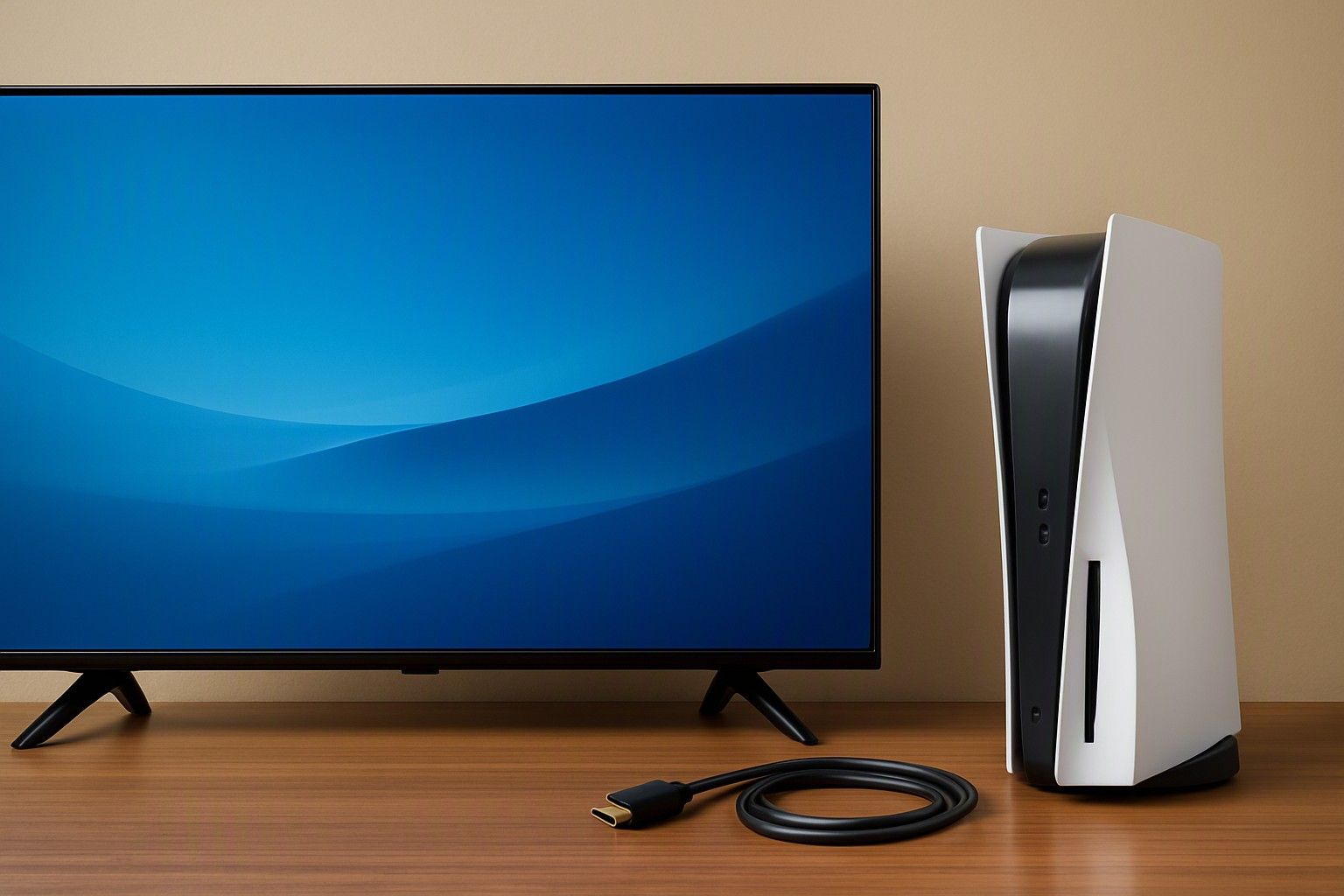
No, you don't need a 4K 120Hz TV to play a PS5 or Xbox Series X properly. A console works on almost any HDMI TV, but a few specific TV features decide how much of the console's capability you actually see. This article is for anyone who plans to plug a new console into a TV they already own and wants to know which features matter and which are marketing.
4K vs 1080p: What Changes at Common Indian TV Sizes
Resolution is the first thing people worry about, and it matters less than the box suggests. Screen size and sitting distance decide how much extra detail your eyes can pick up. In most Indian living rooms the sofa is roughly two to three metres from the TV.
On a 32-inch screen at that distance, 4K and 1080p look very close. You would need to sit much nearer to see the difference. At 43 inches the gap is visible but modest, mostly in fine textures and distant objects. At 50 inches and above, 1080p starts to look soft next to 4K, especially in open-world games with long draw distances.
A console connected to a 1080p TV still works fine. The console detects the TV and outputs 1080p, and many games render at a higher internal resolution and scale it down. That usually gives a cleaner picture than a native 1080p render.
So a 1080p TV at 43 inches or smaller is a perfectly reasonable screen for a new console. A 4K TV starts to earn its place from 50 inches upwards, or when you sit close, such as in a bedroom or a small flat.
120Hz and HDMI 2.1: When They Actually Matter
Refresh rate is how many times per second the screen updates. Most TVs are 60Hz. A 120Hz TV can show up to 120 frames per second, but only if the game produces them. Many console games offer a performance mode that targets 120 frames per second, usually at reduced resolution or detail. Plenty of games, especially big single-player titles, never go past 60.
HDMI 2.1 is the connection standard with enough bandwidth for 4K at 120Hz. It also carries the gaming features covered in the next section. HDMI 2.0, found on most older and cheaper 4K TVs, tops out at 4K and 60Hz.
Two checks save you from being misled. First, a TV can be sold as "120Hz" because of motion processing that inserts artificial frames. That does nothing for a console. You want a native 120Hz panel. Second, many TVs with HDMI 2.1 label only one or two of their ports that way. Look at the port labels or the manual and use the correct one.
120Hz matters if you mainly play fast shooters and racing games that offer a 120 frames per second mode. If your library is mostly slower, cinematic games, 4K at 60Hz gives you almost everything.
VRR, ALLM and Game Mode Settings
These three features are less talked about than 4K or 120Hz, but you notice them more in daily play.
VRR (variable refresh rate) lets the TV match its refresh rate to the frame rate the console is producing at that moment. When a game dips from 60 to 50 frames per second, VRR stops the screen tearing and stuttering that you would otherwise see. It helps most in demanding games with unstable frame rates. Check that your TV supports it over HDMI, not just in its spec sheet's fine print, and that it is switched on in both TV and console settings.
ALLM (auto low latency mode) lets the console tell the TV to switch to its low-lag game mode automatically when you start a game, and switch back when you stop. Without it, you have to change the picture mode yourself.
Game mode is the setting that turns off heavy picture processing such as motion smoothing, noise reduction and sharpening. Even if your TV has no VRR or ALLM, switching on game mode by hand is the most useful single change you can make.
VRR and ALLM usually arrive with HDMI 2.1 ports. A Smart TV without them can still be a good console screen if its game mode is solid.
HDR Claims on Budget TVs
HDR means the picture can show brighter highlights and deeper contrast, and on a good screen it is a bigger visual upgrade than the jump from 1080p to 4K. The problem is that "HDR support" on a spec sheet only says the TV can accept an HDR signal. It does not say the TV can display it well.
Good HDR needs high peak brightness and a way to control light in different parts of the screen, such as local dimming zones. Many budget 4K TVs use edge-lit panels with limited brightness and little or no local dimming. On those, HDR content can look dim, flat or washed out compared with the standard picture.
If your TV is in that group, don't assume HDR is an upgrade. Try a game with HDR on and off, ideally in a lit room, and keep whichever looks better. Switching it off on a weak TV is not a mistake.
So don't let an HDR label on a budget TV push you towards a pricier console. If HDR matters to you, it is a reason to look at the TV's actual brightness and dimming, not at the logo on the box.
Input Lag and Competitive Multiplayer
Input lag is the delay between pressing a button and seeing the result on screen. A console contributes very little to it. Most of it comes from the TV's image processing, which is why game mode matters so much.
For casual and single-player play, the lag of a TV in game mode is hard to notice. For fast online shooters, fighting games and competitive sports titles, it affects how responsive your aim and timing feel. There, a lower-lag screen gives you a real if small advantage.
A 120Hz output helps here too. Each frame arrives sooner, so the screen shows your input earlier, provided the game supports high frame rates and the TV handles them in game mode.
If you play competitively, test before you buy. Run a fast game in game mode and see how it feels. If the TV's manual or settings do not clearly offer a low-lag mode, treat that as a warning sign.
If you mostly play story-driven games or play with friends on the sofa, don't spend extra on input lag. A TV with decent game mode is fine.
Using a Monitor Instead of a TV
A monitor is a legitimate way to play a console, especially in a bedroom, hostel room or study where a TV won't fit. Monitors usually have low input lag, and many offer high refresh rates at a smaller size, so they sit close to you and look sharp.
A few things to check first. The monitor needs an HDMI input, since consoles can't use DisplayPort. To get 4K at 120Hz, the HDMI port must support HDMI 2.1, and not every monitor with a high refresh rate does. Check what resolution the monitor accepts from a console. A monitor with a different native resolution makes the console scale the picture, which can soften it.
Sound is the other catch. Many monitors have weak speakers or none, so plan on a headset or a separate speaker connected through the monitor's audio output or the controller.
If the same desk will also hold a PC, it helps to see how desk setups compare when a PC is also on the table, because the monitor then has to serve both.
Matching Console Power to the Screen You Own
The sensible approach is to buy a console that your screen can actually show off. The consoles in this category run from ₹25,000 to ₹65,000, with an average of ₹40,000, so the screen you already own should shape where you land.
1080p TV, or a 4K TV without HDMI 2.1. You'll see most of what an entry-level console offers. Look at the ₹28,000 and ₹40,000 tiers. Paying for more power mainly buys features your TV can't display, such as 4K at 120Hz.
A 4K TV at 50 inches or above with HDMI 2.1, native 120Hz and VRR. This is the pairing where a console in the ₹60,000 tier makes full use of what you're paying for.
In between, such as a 4K TV with 60Hz only. The mid tier, ₹40,000, is usually where the spend still matches what the screen can show.
To see in more detail which price tier stops making sense on a 1080p screen, compare what each tier adds with what your display can use. If a tier's main advantage is something your TV can't show, that is the point to stop.
Deciding Whether to Upgrade the TV or the Console First
Start with what you own and what is actually holding you back.
Upgrade the console first if your TV is 4K or a decent 1080p set with a working game mode. The console is the part that changes which games you can play, and the TV will already show them well. You can buy the console now and see how the picture looks before deciding anything else.
Upgrade the TV first if your screen is very old, has no game mode, shows noticeable lag, or has only a handful of HDMI inputs and no way to use HDR. A great console on a poor screen wastes the money you spent on it.
Do them together if you are building a living-room setup from scratch. Here the TV choice should follow the console tier you're aiming for, so a console in the ₹60,000 tier pairs with a TV that has HDMI 2.1 and native 120Hz.
The display is only one part of the decision. Games library, storage, online subscriptions and controllers matter just as much, and you can read the other buying factors beyond display specs to cover them. Don't hold off on the console until you've bought a new TV, because most TVs people already own will play it well.
You don't need a 4K 120Hz TV to play a PS5 or Xbox Series X properly. For most buyers, a TV with a good game mode, HDMI that suits the console and a size that fits the room is enough. 4K, 120Hz, HDMI 2.1 and VRR add real value only when your screen is large enough and your games use them. Check your TV against that list, pick the console tier that matches it, and you can buy with confidence.
Comments
Be the first to comment.