Using a Tata Play, Airtel or Dish TV Box With a Smart TV: Picture, Remotes and Setup
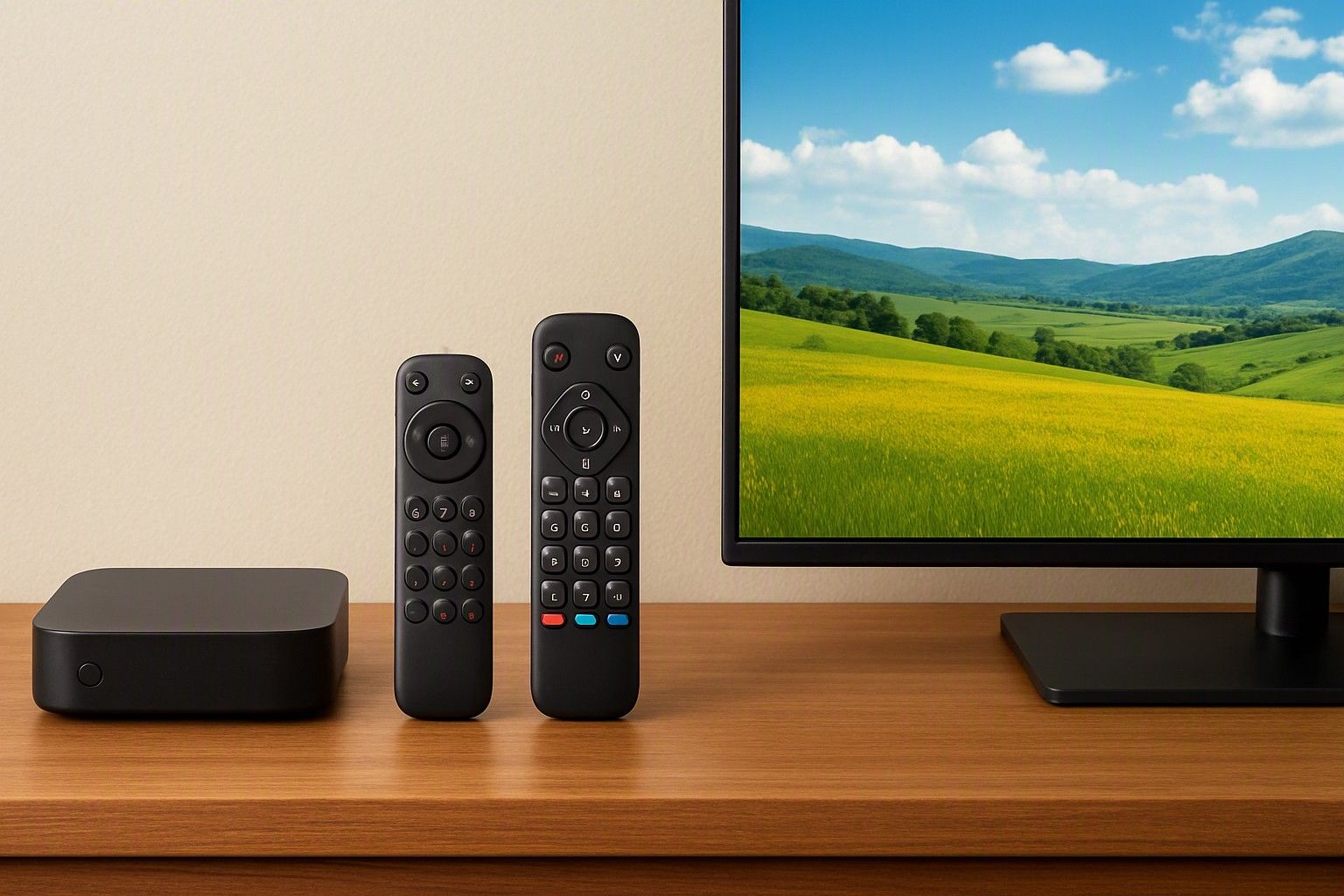
Yes, DTH channels can look soft on a large 4K smart TV, but how soft depends on the channel, the box and a handful of settings you control. If your household still watches news, serials and cricket through a Tata Play, Airtel or Dish TV box, this article shows what is really causing the blur, which fixes work, and how to set up one tidy remote-and-picture arrangement.
Why DTH Channels Look Soft on Large Screens
A 4K panel has several times the pixels of the standard-definition picture many DTH channels still carry, so the TV has to invent the missing detail. It stretches the image and smooths it with its processor. On a small screen you barely notice. On a 55-inch or larger panel the stretching shows up as fuzzy edges, blocky patches in dark scenes and banding on skies and cricket outfields.
The feed itself is also compressed hard to fit many channels on one satellite signal, so some of the softness exists before your TV touches it. This is why the same TV can look sharp on an OTT app and mushy on a regional entertainment channel. If you want the technical background, here is how 4K panels upscale lower-resolution channels, and why a better processor improves the result without creating detail that was never sent.
Two practical points follow. First, the channel matters: an HD channel on a 4K TV looks clearly better than an SD one, so check which of your regular channels are actually HD on your pack. Second, sitting distance matters. Moving back a little from a big screen hides much of the softness that is obvious up close.
HD Box vs Android-Based Hybrid Boxes
A standard HD set-top box does one job: it receives channels and sends them to the TV over HDMI. It is simple, the remote is familiar to everyone at home, and it does not add another menu to learn. An older SD-only box is a different matter. It cannot output an HD picture at all, so swapping it for an HD box is the cheapest picture upgrade you can make, even before touching the TV.
Android-based hybrid boxes combine DTH channels with streaming apps in one interface. That helps if your TV is old and has no apps. On a smart TV it mostly duplicates what you already have: a second app store, a second set of logins and a second remote, plus another device that can lag or need updates. The channel picture quality is still limited by the DTH feed, so a hybrid box does not make channels sharper.
For most households with a current smart TV, a plain HD box plus the TV's own apps is the cleaner setup. A hybrid box makes sense only if the TV's software is slow or missing apps your family needs. Before paying extra for any box labelled 4K, ask your provider what 4K content actually exists on your plan.
HDMI Connection, Output Resolution and Picture Settings
Start with the cable. If the box is connected with the old yellow-red-white AV lead, that alone can explain a poor picture, because it carries a low-quality analogue signal. Use an HDMI cable from the box to a TV HDMI port. If you also have a soundbar on the ARC port, keep that port free and plug the box into another one.
Next, open the box's settings and look at the output resolution. Set it to the highest HD option it offers, such as 1080p or 1080i, rather than leaving it on an auto or low setting. A TV's scaler is generally better than the box's, so give it the most detailed signal available. Also confirm the aspect ratio is 16:9 and the TV's picture-size option is set to fit the screen without cropping or stretching.
Finally, adjust the TV itself:
- Use Standard or Movie picture mode instead of a vivid mode that exaggerates edges.
- Lower sharpness, since high sharpness makes compressed channels look grainier.
- Keep noise reduction on a low or auto level to calm blocky artefacts without smearing faces.
- Try motion smoothing for sports if you like it, but switch it off for films and serials.
Save these as the settings for that HDMI input, so streaming apps keep their own picture.
One Remote for Everything: HDMI-CEC Explained
HDMI-CEC lets devices connected over HDMI talk to each other, so the TV remote can control the box, switch inputs and sometimes handle power together. Every TV maker uses its own name for it, so look for a setting under HDMI or external devices and switch it on. It also has to be supported on the box side, and this is where DTH boxes are inconsistent. Some respond to basic commands, many do not, and a few work only partly, for example turning on but not navigating the guide.
Test it rather than assume. Enable CEC on the TV, power the box on and off from the TV remote, and see whether the arrow keys and channel buttons work. If they do not, use the fallback: most DTH remotes can be programmed with your TV's code to control volume and power, so you use the box remote for channels and volume and the TV remote only for apps. Keep that arrangement consistent for older family members.
How smoothly this works also depends on the TV's software and how it handles external inputs. See the TV platforms that pair best with set-top boxes for how Google TV, Tizen and webOS differ in input switching and remote behaviour.
Should Your Family Drop DTH for OTT Apps Entirely?
For some homes, yes. If your family watches mostly shows, films and a few news or sports streams, and your broadband is steady, OTT apps give a sharper picture than SD-heavy DTH channels, and you manage everything from one remote. A fixed broadband line also avoids the signal drop that heavy rain can cause on a dish.
For others, dropping DTH creates more problems than it solves. Live news, regional and devotional channels, and many sports events are still easier to get through a channel pack. Older family members who just press a channel number may find app menus frustrating. Several OTT subscriptions together can also cost as much as a DTH pack, so add them up before assuming it saves money. If your internet plan has a data limit, daily streaming on a 4K TV can use it quickly.
A sensible middle path is to keep a lean DTH pack with the HD channels you really watch and use OTT for everything else. Choose based on what your household watches daily, not on what feels more modern. If the TV is going to handle both, that points to a set with good upscaling and enough HDMI ports.
Picking a TV That Suits a DTH-Plus-OTT Household
Smart TVs in this category run from ₹6,999 to ₹3,00,000, with an average around ₹35,000, so a DTH-heavy household has plenty of choice at every budget. What matters here is less about the headline resolution and more about how the TV treats a low-quality feed.
Look for these in any TV you consider:
- Upscaling quality: a capable processor makes SD and HD channels look cleaner. Judge this by watching a regular channel in the shop or checking reviews that mention cable or DTH footage.
- HDMI ports: at least three, with one ARC port, so the box, a soundbar and a console do not compete.
- CEC support and a usable remote: check that input switching is quick and that the remote can be learned or paired with other devices.
- Screen size against sitting distance: a very large panel in a small room magnifies DTH softness. A mid-size screen often looks better for channels.
In the ₹12,000 tier, expect simpler processing, so keep screen size modest and an HD box essential. The ₹30,000 tier is where upscaling and software usually become more comfortable, and the ₹65,000 tier adds stronger processing for larger rooms. When you are ready to shortlist a TV that handles both cable channels and streaming well, use the main buying guide to match these points to your budget.
So, will DTH look blurry on a big 4K TV? A little, if you leave an SD box, an AV cable or vivid picture settings in place, but far less once you use an HD box, an HDMI connection, the right output resolution and calmer picture settings. Pair that with a TV that upscales well and has working remote control, and DTH and OTT can share one screen without fuss.
Comments
Be the first to comment.